
Your workspace
Publishing to Git
Review file changes and publish a commit or pull request.
Saving is not publishing
Drafts stay in the Prosefly workspace until you explicitly publish. A saved draft does not modify your repository. Published content is written as normal repository files.
Review the diff
Open publication review from the editor. Check every affected file, including navigation configuration when present. Confirm the repository, target branch, file paths, and publication mode.
The review suggests a title and Markdown description. You can edit them before submission. New changes made while publication is running are not silently included in that reviewed snapshot.
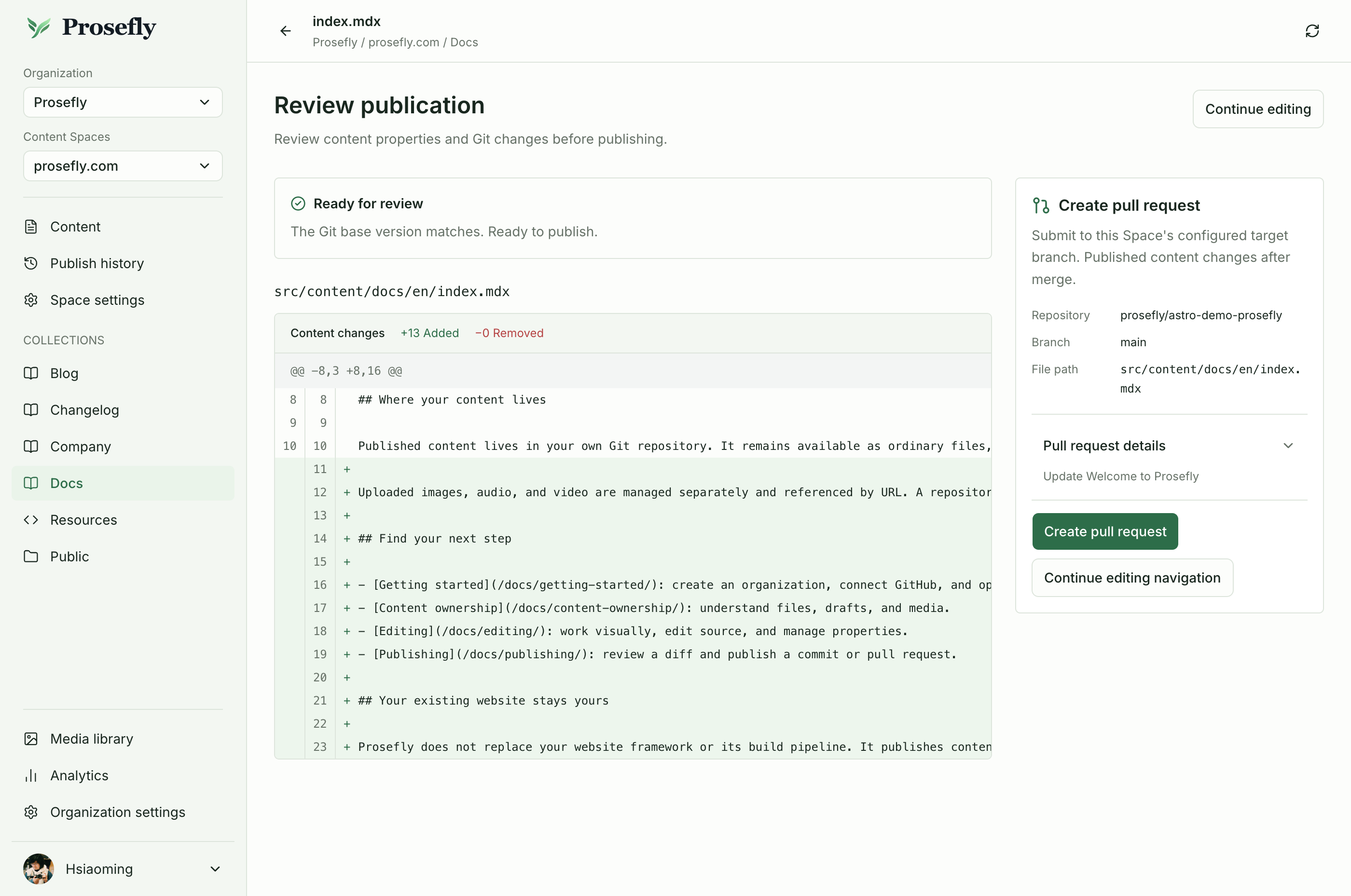
Review the affected file changes alongside the pull request details.
Choose the publication workflow
- Commit: write the reviewed changes to the configured target branch.
- Pull request: create a branch and GitHub PR containing the reviewed changes. The target branch is updated when that PR is merged.
The Space’s settings determine its publication mode. GitHub App write permissions and repository branch protections must allow the selected workflow.
Follow the result
Publish history links to the GitHub result and shows the submitter, target, and status. A PR initially awaits merge. Refresh history to check unresolved PRs; this is not continuous background polling.
Git publication does not deploy a website. Your site’s existing build and hosting workflow handles deployment after changes reach the expected branch.
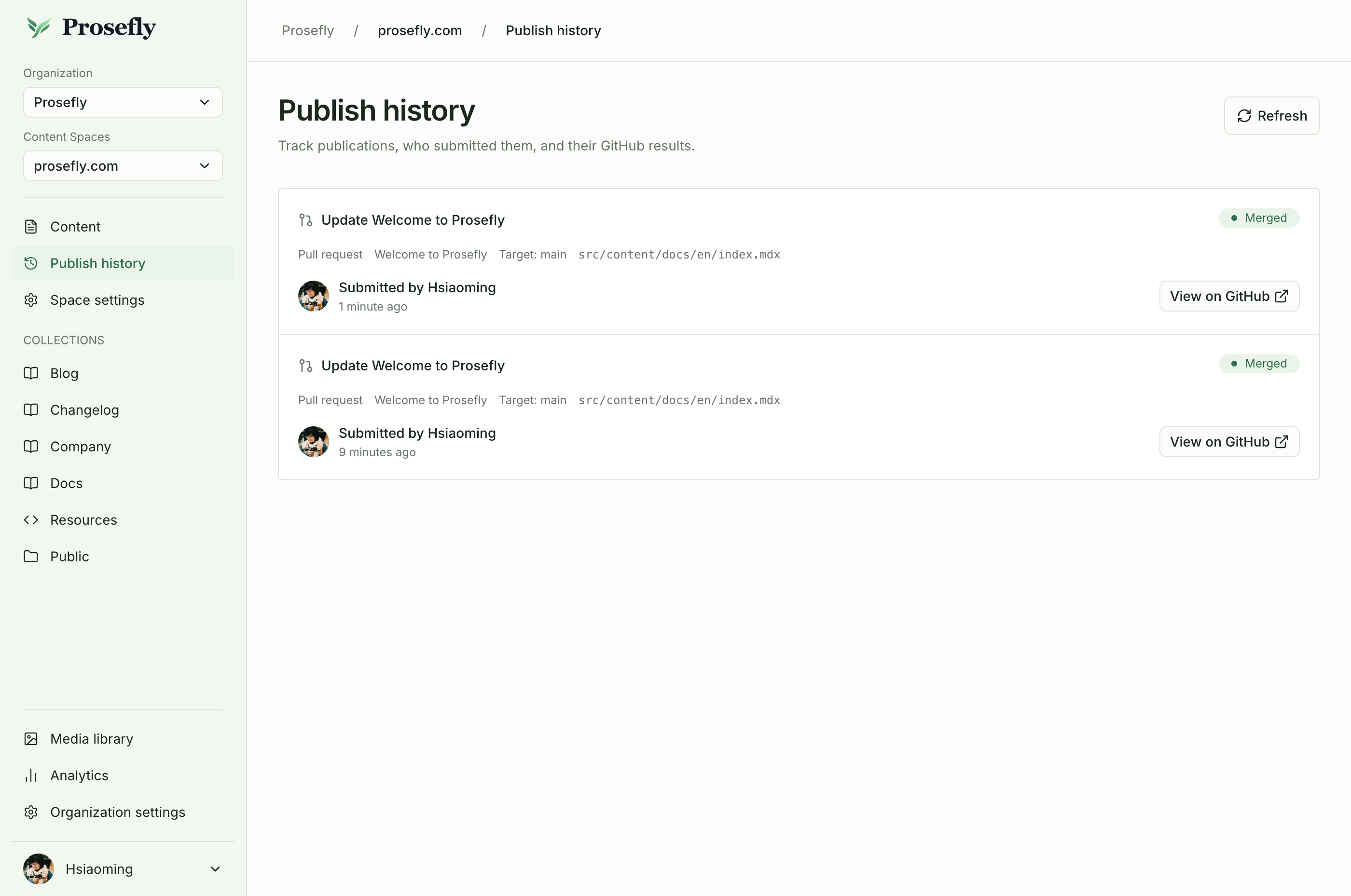
Publish history links each publication to its GitHub result and shows the latest status.
Handle an external change
If the Git base changed while you had a draft, compare the original base, current Git content, and your draft. Resolve the conflict before publishing again. Prosefly does not force away concurrent repository changes or automatically merge conflicting documents.
Scan after external repository changes to refresh the content index. Publishing and scanning are distinct operations.
Last updated Oct 9, 2026